
This is a special testing group for a handleful of people to make sure the official test version will work later this month.
What you need:
An android phone or tablet with android 5.0 or higher (any android phone/tablet less that 10 years old)
How to install on Android
Step 1 – Make sure i’ve got your email address to add you to the testers group.
Step 2 – Click here to join the testers group on your phone/tablet – https://play.google.com/apps/testing/com.workbreaktimer
Step 3 – Click accept, then on that page click download it on Google Play.
How to install on Apple
Click this link: https://apps.apple.com/us/app/work-break-timer/id6634579526 on your phone/tablet, this will open Apple app store and you can install from there.
Running The App
Install the app and open it.
After the 4th onboarding page you’ll get a permissions request asking if the app can show notifications, choose Yes.
You should now be on the home page, offering you 3 timers, a settings button and 3 links to this website. We’ll be using the Repeating Timer in the first test.
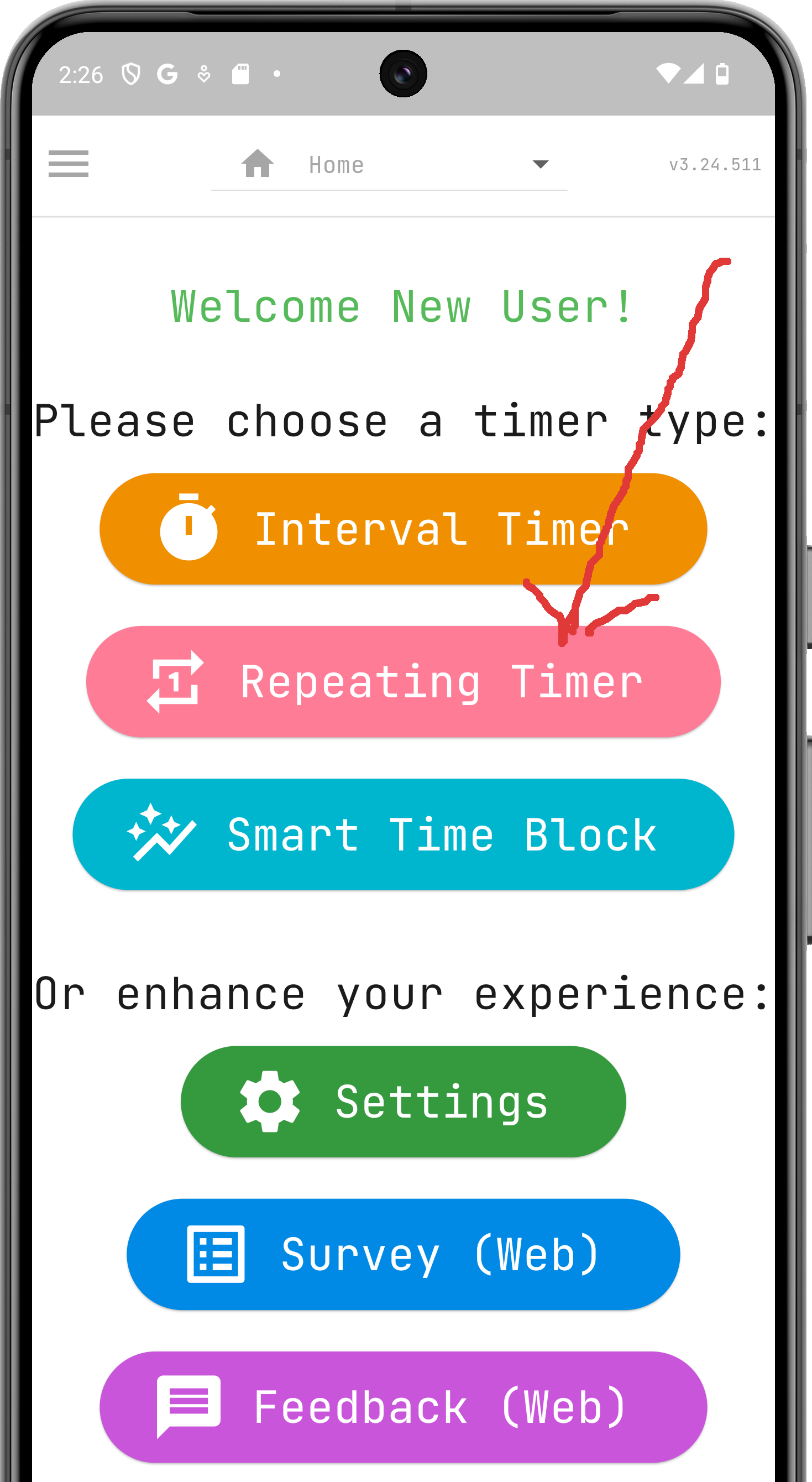
Ok if you can see something like this – you’re all set
Test 1 of 2 – ‘Does it work’ Test
- Make sure your phones sound volume isn’t muted
- Start a ‘repeating timer’
- Press the ‘decrease timer’ button a few times until the timer only has a few seconds left. (see 1st screen shot below)
—– - Wait for the time to countdown, you should see a few things go red and hear the alarm going off.
—— - Press the snooze button (see 2nd screen shot below)
- Decrease the timer again as per step 3
- Put the app into the background by closing it, or opening another app
——- - You should get a vibration and notification when the timer runs out
End of Smoke Test – Yay!
Hopefully that worked for you, if not let me know what happened!
Screenshots for above steps
| Step 3 Wind down the timer with decrease time button | 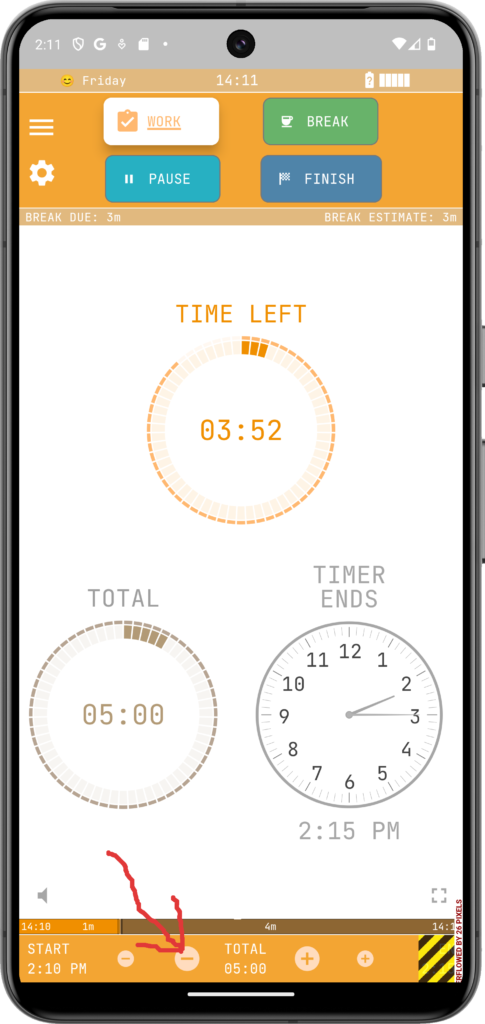 |
| Step 5 Time over – click the snooze button | 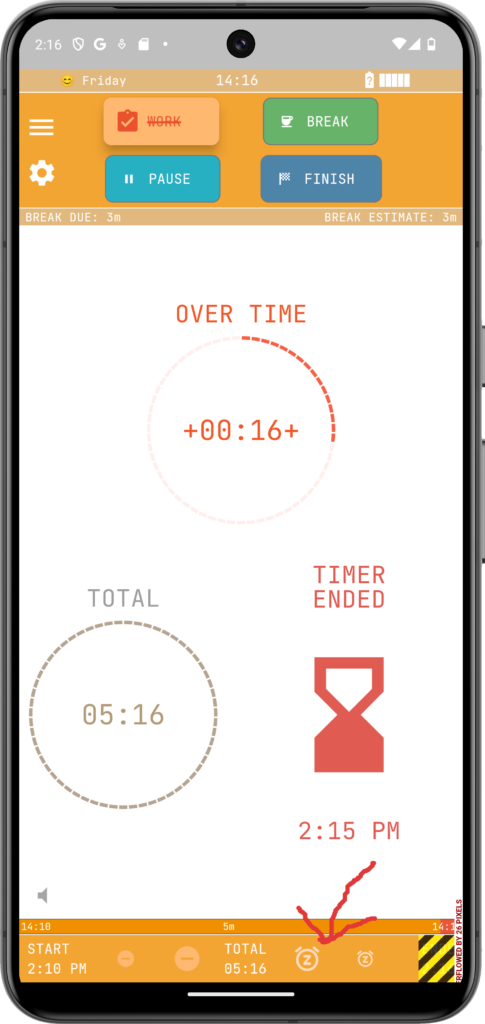 |
Test 2 of 2 – ‘Does it Make Sense’
So I’m making a detailed full video tutorial for new users, none of whom have heard of things like micro breaking or interval working.
This test is to see how usable the app is without having such a tutorial, see if it’s intuitive or not. As a general rule you can click on any time/countdown and change it. Top left of the app is the main menu button.
So there are 3 Timers to play with.
Interval Timer
This is good for doing pomodoro. The idea is you work in dedicated bursts and don’t let distractions or interuptions stop you working. Its good for large volumes of work, or boring stuff like admin.
This youtube video is a pretty good overview of the technique, to (re-)familiarise yourself with the technique.
Smart Timeblock
This is a bit like pomodoro, but rather than setting interval lenghts and rounds, you pick a session duration or finish time, and the app will autofit your intervals and breaks for you. This works well for deep work where fixed intervals are counter-productive.
The technique here differs in that you can change the timers on the fly and snooze alarms if you’re in the middle of something. It also doesn’t matter if you get interupted, just hit the pause button and tend to your interuption until your ready to work again.
Repeating Timer
This is basically the same as smart time block, but without having to think about how long a session you want.
General Hints/Tips
When is a break not a break?
So for me, there are these different kind of ‘breaks’ and how I treat them
- Nano Break. Going to the bathroom, or kitchen to make a coffee and immediately returning back. Usually only a few minutes long, I usually don’t bother marking these as breaks as I’m still thinking about Work and these breaks are not long enough to rest your body.
- Microbreak. Making a coffee and not returning to your desk until the timer goes off. I’d recommend at least 5 mins, or longer if the app advises so.
- Vitality Break. These are longer breaks in between sessions. I often extend these to 30-60 minutes and get some housework done, or grab some lunch. 15 mins is your absolute minimum, 20 is ideal.
- ‘Not really a break’. If your on a ‘break’, but still at your computer surfing the web then by all means time it as a break as your brain is getting a rest from your work, but your body isn’t getting a rest. Ideally if you want to do ‘personal things’ on your desk then do a timed work session, or give yourself an extended ‘PAUSE’ if you don’t want the time tracked as part of your work hours.
That’s it!
Let me know how you get on!